QR Codes on Business Cards: The Complete Design & Strategy Guide
The business card has been the cornerstone of professional networking for generations. Exchanging a physical card at the end of a meeting or conference is a ritual that conveys professionalism, intentionality, and respect. But the traditional card has a fundamental limitation: at 3.5 by 2 inches, it barely has room for your name, title, phone number, and email—let alone your portfolio, your LinkedIn profile, or your company's latest case study. A well-designed QR code transforms that tiny physical card into a gateway to your entire professional world, making every handshake infinitely more valuable.
Why Every Professional Should Have a QR Code on Their Card
Consider what happens after someone takes your business card. In the best case, they get home, find the card in their jacket pocket, and manually type your email address into their phone's contacts app. In reality, the card often sits in a pile, gets lost, or ends up in the trash. A QR code removes every one of those friction points. A single scan saves your contact information, links to your portfolio, or connects to your LinkedIn profile—instantly, before they've even left the room. Research consistently shows that digital follow-up rates are significantly higher when contact information can be saved with a single tap.
What Should Your Business Card QR Code Link To?
The most important decision is choosing the right destination. Each option has a distinct set of strengths depending on your profession and networking goals:
Option 1: A Digital Contact Card (vCard / vCard Plus)
The most universally useful destination for any professional is a digital contact card. A standard vCard encodes your contact details directly into the scan—when someone scans the code, their phone immediately prompts them to save you as a contact. However, as we detail in our vCard Plus guide, a URL-based digital profile page is even more powerful: it's always up to date (even if you change jobs), it can display rich content like your headshot and social links, and it gives you analytics on who scanned it and when. For most professionals, this is the gold-standard recommendation.
Option 2: Your LinkedIn Profile
For B2B professionals, sales executives, and anyone whose primary networking objective is building a professional relationship, linking to a public LinkedIn profile is highly effective. LinkedIn's profile page functions as a verified professional resume, displays your endorsements, mutual connections, and recent activity—creating immediate social context and trust. LinkedIn also provides its own built-in QR code feature for app-to-app sharing, but having it on a physical card expands your reach to any smartphone camera.
Option 3: A Professional Portfolio
For designers, photographers, architects, developers, writers, and other creatives, a QR code linking directly to your portfolio is often the most compelling choice. Rather than describing your work verbally, you can say "scan this to see what I've made." A person reviewing a beautifully designed portfolio on their phone while standing with you at a networking event is far more likely to remember you—and hire you—than someone who reads a title on a paper card later.
Option 4: A Link-in-Bio Aggregator
Tools like Linktree, Beacons, or a simple custom one-page website let you aggregate all your important links in a single mobile-friendly page. This is ideal if you have multiple platforms you want to direct people to—your website, social channels, booking calendar, podcast, email newsletter, and "Save to Contacts" button—without forcing a choice. A clean, well-designed aggregator page tells a professional story in seconds.
Design Rules: Making It Look Professional
Nothing undermines a premium business card faster than a poorly integrated QR code. A generic black square dropped into the corner of an elegant design looks like an afterthought. Done right, a QR code should look like it belongs—a deliberate, designed element of the card's visual identity.
Sizing: The Non-Negotiable Minimum
Your QR code should be a minimum of 0.8 × 0.8 inches (approximately 2 × 2 cm) when printed on a standard business card. Below this size, older phone cameras struggle to auto-focus on the code, especially in the variable lighting of networking events. A code that can't be scanned reliably is worse than no code at all—it creates friction at the exact moment you want to impress. Aim for 1 × 1 inch if your card layout allows it.
Contrast: The Scanning Prerequisite
QR code scanners work by detecting the contrast between dark modules (squares) and a light background. The rule is simple: your foreground must be significantly darker than your background. A dark navy code on a white or cream card scans perfectly. A charcoal code on mid-gray will fail. And while inverted codes—light code on a dark background—are theoretically supported by the QR standard, many scanning apps struggle with them in practice. If your card has a dark background, the safest approach is to place the code within a small white inset box.
The Quiet Zone: Invisible but Essential
Every QR code requires a clear "quiet zone"—a blank margin of at least 4 modules (roughly 10% of the code's total width) on all four sides. If text, other design elements, or the card's edge intrudes into this margin, the scanner's ability to locate the code's corner markers is compromised. This quiet zone is invisible to the eye but essential to scanning. In your card design file, ensure nothing overlaps the code boundary.
Match Your Brand Identity
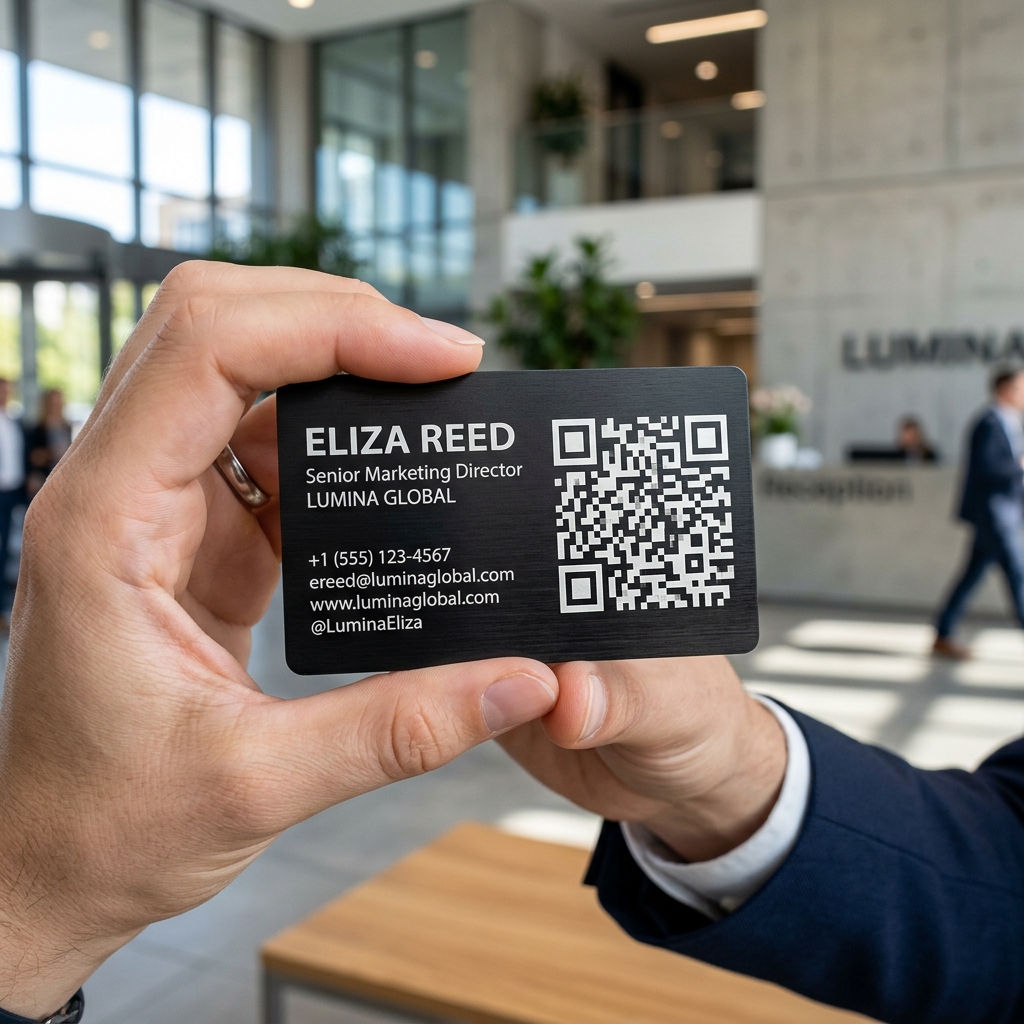
Our free QR generator lets you customize the foreground color, background color, dot style, corner square style, and embed a central image. Use your brand's primary and secondary colors. Choose a dot style that fits your brand's personality—rounded or "Extra Rounded" dots feel modern and friendly; "Classy" dots feel structured and corporate; standard square dots feel technical and precise. Embed your company logo or personal monogram in the center. The result is a code that is unmistakably yours.
Placement on the Card
The back of the card is the most common and natural place for a QR code—it gives the code space without competing with the front face's name and title. If your card design is double-sided with equal weight on both sides, consider integrating the code as a design focal point rather than an appendage. Some professionals place their code prominently on the front alongside a single bold line: "Scan to connect." This confident approach signals digital fluency and curiosity.
A Step-by-Step Workflow
- Step 1: Decide your destination. Choose between a vCard download, LinkedIn, a portfolio, or a link aggregator page. If you want it to be updatable without reprinting cards, use a URL-based destination rather than embedding raw contact data.
- Step 2: Shorten the URL. Shorter URLs generate less dense QR codes. Less dense = faster, more reliable scans. Use bit.ly, Rebrandly, or your own custom domain shortener.
- Step 3: Generate a branded code. Use our free tool to customize colors, dot style, and embed your logo. Download at the highest resolution available.
- Step 4: Test before you print. Scan test prints (not just screen previews) on at least two different devices—iOS and Android. Verify the destination loads correctly on mobile data, not just WiFi.
- Step 5: Print at the right resolution. Provide your printer with a vector SVG or a minimum 300 DPI raster image. Low-resolution QR codes print blurry and become unscannable at the edges.
Build Your Business Card QR Code for Free
Customize your code's colors, dot style, and logo—then download a print-ready file. No account, no subscription, 100% free and generated entirely in your browser.
Create Your Business Card QR Code →